


Mobile and Tablet Devices Review

Cyber Living posts the specifications or details of the latest mobile phones and tablets with some thought comments on the device You can find them by clicking the MOBILE?TSBLET DEV on the menu bar above. Or you can click this link Mobile and Tablet Devices

Computer Problems Solutions

For personal computer/notebook problems and tips, refer to PC PROB from the menu or click this link Personal Computer Problem Solutions.

What's in the world with Philippine ISPs

Discussions about Philippine Internet Service Providers (ISPs) particularly problems users are encountering but are not getting any solutions.

  • Tips or work around to these problems to improve browsing experience.
  • Do you have any problems too? Give your comments below each of the posts to be heard.
  • Or better yet, send me a message on our contact form if you want a dedicated article to your problem on this site.
  • Bloggers and Webmasters tips/tricks

    Looking for something to implement to your site? Our Bloggers' tips/tricks have what you need. If you do not find it there, notify us through our contact form.

    SEO Tips

    Tips to improve your rankings on Search Engine Resuts Pages (SERPs).

    Showing posts with label Internet Connection. Show all posts
    Showing posts with label Internet Connection. Show all posts

    Saturday, July 27, 2013

    Speed up internet browsing by skipping server side DNS lookup and blocking unwanted ads

    Use Hosts file to speed up browsing

    The title says it all. Page load speed can be increased if only host name resolution can be done within your computer and you don't have to wait for all the ads in a site to load.

    In a previous post, I mentioned that you can increase browsing speed (page load speed) by using other DNS servers like Google Public DNS and OpenDNS instead of using your ISP's DNS service. This is because your ISP may be over saturated that it is having difficulty coping up with all the requests.

    But using Google Public DNS or OpenDNS  is still in the internet and so you still need to go through it to resolve a host name.

    But there is a way to resolve host names within your local machine. In the old days, host name resolution is done by using the Hosts file (this file has no extension). This file resides in:

    C:\Windows\system32\drivers\etc\

    The Hosts file is a simple text file that contains IP address with its corresponding host name. It maps a host name to its corresponding IP address. We can read and edit its content by using a text editor like Notepad.

    How to add a host name and its corresponding IP address in the Hosts file?
    If you open your Hosts file now in Notepad, you will only see one entry for localhost, 127.0.0.1     localhost also called the loopback address.

    The format for adding to the list is the IP address first, then a space and finally the host name. It does not matter if you have one, two or as many spaces between IP address and host name as the succeeding spaces will be ignored but for readability everyone use the tab.

    If for example then we wanted to add www.google.com using the IP address 74.125.128.191 (one of many Google's IP address). It would look like this: 74.125.128.191     www.google.com and if I decided to add one for this blog: 74.125.128.132     cyberliving.blogspot.com. The content would then look like this:

    # This file contains the mappings of IP addresses to host names. Each
    # entry should be kept on an individual line. The IP address should
    # be placed in the first column followed by the corresponding host name.
    # The IP address and the host name should be separated by at least one
    # space.
    #
    # Additionally, comments (such as these) may be inserted on individual
    # lines or following the machine name denoted by a '#' symbol.
    #
    # For example:
    #
    #      102.54.94.97     rhino.acme.com          # source server
    #       38.25.63.10     x.acme.com              # x client host

    127.0.0.1       localhost
    74.125.128.99 www.google.com
    74.125.128.191 www.blogger.com

    Save this file. Please note that notepad automatically adds extension to saved files so do not use Save as... just use Save to preserve the property of the file.

    Once the file is saved, the effect of it is immediate. There is no need to restart or disconnect/connect to the internet. While using Chrome version 28, it is not necessary to restart the browser as well but some browsers may require restarting.

    Guides to Host file editing
    Here are some rules that must be strictly followed in order that you will not wreck havoc with your networking.
    It is recommended that you back-up your Hosts file before you edit it. Just create a back-up folder within the C:\Windows\system32\drivers\etc\ folder then copy the Hosts file and paste it inside the created back-up folder.


    1. Each entry should be kept on individual line. One IP address and host name per line. If a host name has more than one IP address, then add it in another line with again its host name.
    2. IP address is placed in front of the host name separated by at least one space.
    3. Do not associate host name with any programs. Watch out when opening the Hosts file as you might accidentally associate this with a program like Notepad. Never click the "Always use the selected program to open this kind of file" radio button to avoid this.
    4. When saving, just click on Save and not Save as... to avoid placing an extension to the file. Notepad and other programs automatically ads the default extension when Saved as... is used.

    To block a site or ad from loading
    In order to do this, give the host name where the ads are coming from or the site you wish to block with the localhost IP address (127.0.0.1)

    Benefits of using the Hosts file
    By using your machine to look-up sites, it will be much faster for it to resolve their host names and consequently land to the page faster.

    Blocking ad sites from loading will also make the page you are trying to visit load up faster. The downside though is that you will see some content of the site not loading or with an error message.

    Blocking some malicious sites containing malware or trojans (or phishing sites) will protect you from accidentally landing on them thus preventing you from downloading said malware and/or trojans. You will also be prevented from entering phishing sites thus your username and password is protected.

    Back to CyberLiving home page

    Other Posts

    Tuesday, July 23, 2013

    Smart Bro DNS vs. Google Public DNS

    Here is a study comparing the DNS server from Smart Bro performance against that of Google Public DNS.

    It has been thought that because Google has a large database that using their public DNS server would increase internet speed. So how true is it?

    To begin, let me illustrate what happens when we browse the internet. At least as I understood it.

    It starts from our computer. When we open our browser and type in a URL in the address bar called host name (like www.google.com), our computer sends out this information to the internet. But every machine, including the servers that host a domain, do not have word names, it has numeric names called IP address (like 173.194.38.144). The words are only for humans because we are better at remembering words than numbers.

    To resolve this, another server is needed to translate the host name into an IP address before your request for a web page can continue. That is the job of a DNS server, to resolve host names into its equivalent IP address then directs you to the proper server.

    Your computer sends out request to a host name, host name gets translated into an IP address by a DNS server, target IP address sends out requested data to your computer.
    Smart Bro vs. Google Public DNS
    To compare the two let us take the latency by using the ping command to check for delay but according to Google the delay in internet browsing also includes the host name resolution time.

    "In addition to the ping time, you also need to consider the average time to resolve a name. For example, if your ISP has a ping time of 20 ms, but a mean name resolution time of 500 ms, the overall average response time is 520 ms. If Google Public DNS has a ping time of 300 ms, but resolves many names in 1 ms, the overall average response time is 301 ms.

    The formula then for delay is:
    Delay = connection latency + host name resolution time

    To get the host name resolution time, I used the nslookup command in a batch file in DOS. I have taken some data at different times of the day as internet traffic varies during the day. Here is a summary of the result.

    Time Host Name Ping Result DNS Server Resolution Time Total Delay
    Smart Bro Google Public DNS Smart Bro Google Public DNS Smart Bro Google Public DNS
    Day1 @ 1am www.google.com 312 ms 479 ms 1110 ms 1130 ms 1422 ms 1609 ms
    www.facebook.com 447 ms 290 ms 1140 ms 1050 ms 1587 ms 1340 ms
    cyberliving.blogspot.com 518 ms 446 ms 1160 ms 2170 ms 1678 ms 2616 ms
    Day1 @ 9am www.google.com 331 ms 512 ms 1290 ms 1120 ms 1621 ms 1632 ms
    www.facebook.com 433 ms 474 ms 1080 ms 1140 ms 1513 ms 1614 ms
    cyberliving.blogspot.com 486 ms 507 ms 1380 ms 1130 ms 1866 ms 1637 ms
    Day1 @ 4pm www.google.com 411 ms 318 ms 1020 ms 700 ms 1431 ms 1018 ms
    www.facebook.com 358 ms 283 ms 880 ms 640 ms 1238 ms 923 ms
    cyberliving.blogspot.com 420 ms 303 ms 1090 ms 700 ms 1510 ms 1003 ms
    Day1 @ 9pm www.google.com 509 ms 438 ms 1140 ms 900 ms 1649 ms 1338 ms
    www.facebook.com 399 ms 330 ms 1020 ms 870 ms 1419 ms 1200 ms
    cyberliving.blogspot.com 510 ms 447 ms 6390 ms 940 ms 6900 ms 1387 ms
    Day2 @ 12am www.google.com 344 ms 298 ms 700 ms 550 ms 1044 ms 848 ms
    www.facebook.com 288 ms 255 ms 710 ms 430 ms 998 ms 685 ms
    cyberliving.blogspot.com 302 ms 325 ms 670 ms 640 ms 972 ms 965 ms
    Day2 @ 10am www.google.com 645 ms 349 ms 1670 ms 750 ms 2315 ms 1099 ms
    www.facebook.com 505 ms 288 ms 1450 ms 720 ms 1955 ms 1008 ms
    cyberliving.blogspot.com 566 ms 300 ms 1650 ms 720 ms 2216 ms 1020 ms
    Day2 @ 7pm www.google.com 378 ms 330 ms 840 ms 570 ms 1218 ms 900 ms
    www.facebook.com 428 ms 303 ms 740 ms 560 ms 1139 ms 863 ms
    cyberliving.blogspot.com 305 ms 349 ms 810 ms 820 ms 1115 ms 1169 ms

    Comparing the two, in general, using Google Public DNS gives a latency and host name resolution that is lower, thus the overall delay is much lower compared to that of my ISP.

    It is interesting to note though that my first two results in Day 1 is showing a better performance for my ISP. And this is during a non-peak hours my time. But otherwise, Google Public DNS is thus far winning the battle. That is, of course, only one part of the problem solved. We have only looked at the delay from the moment our computer made the request until we got a response.

    What does it mean to you? When you go to a certain web page, your computer actually makes several http requests. This is because web pages have javascript, CSS, html, images, Flash, etc. which are separate files in themselves saved at the same domain or from other domains and each one requires a separate request (http request) to the same domain.

    Here is an example:
    If I would have visited www.facebook.com on Day1 @ 9pm and it requires a total of 5 http requests, using my ISP's DNS would have a delay of 7.095s (5*1419ms) while with Google Public DNS it would only be 6s (5*1200ms) or a difference of approximately 1 second. With higher http request for a page the longer you will have to wait and the bigger difference between the two.

    Throughput Speeds
    How about the download and upload speed (Throughput) of our internet connection? Does using other DNS server improve it? For this, I have to use the online testing tool at speedtest.net. I choose three locations to test my download and upload speed. One nearest my location, one midway between my location and the Americas and one in the United States.

    Time Down/Up Speed Tarlac Lutsk Sioux Falls SD
    Smart Bro Google Public DNS Smart Bro Google Public DNS Smart Bro Google Public DNS
    Day1 @ 10am Download Speed 0.35Mbps 0.25Mbps 0.40Mbps 0.30Mbps 0.53Mbps 0.43Mbps
    Upload Speed 0.15Mbps 0.15Mbps 0.21Mbps 0.17Mbps 0.23Mbps 0.17Mbps
    Day1 @ 4pm Download Speed 0.46Mbps 0.55Mbps 0.77Mbps 0.71Mbps 0.32Mbps 0.71Mbps
    Upload Speed 0.16Mbps 0.18Mbps 0.23Mbps 0.20Mbps 0.17Mbps 0.29Mbps
    Day2 @ 12am Download Speed 0.94Mbps 0.34Mbps 1.03Mbps 0.30Mbps 1.11Mbps 0.48Mbps
    Upload Speed 0.15Mbps 0.13Mbps 0.25Mbps 0.18Mbps 0.29Mbps 0.29Mbps
    Day2 @ 10am Download Speed 0.20Mbps 0.43Mbps 0.53Mbps 0.46Mbps 0.36Mbps 0.48Mbps
    Upload Speed 0.14Mbps 0.15Mbps 0.20Mbps 0.21Mbps 0.26Mbps 0.27Mbps

    The result above is now reversed. This time, it looked like Google has lower download and upload speeds compared to Smart Bro.

    If I am to translate this into browsing speed, it will be like this. It is thought of that currently, the average size of a page is 1.3MB. Let us say I wanted to visit a site (www.exampleLutsk.com) located in the area of Lutsk, Ukrain during the time Day1 @ 10am, it would take me to download the content of the page (1.3MB) in 26 seconds (0.4Mbps=0.05MBps) using my ISP's DNS while with Google it would be 30.5 (0.3MBps=0.0375MBps) seconds or a difference of 4 seconds between the two.

    Summary
    With the tabulated results above, I could say that there is no difference with using my Smart Bro's DNS against that of Google Public DNS in terms of internet browsing speed. That is because, whatever advantage Google had with latency and host name resolution was erased by the download and upload speed. One reason I see that caused the bandwidth reduction in using Google's Public DNS is that it could be redirecting me to a server further from my location. But this is something that I have not verified and is beyond the scope of this post.

    Increased HTTP look-up or not, notice at the tabulated ping results that my round trip time (RTT) is quite large. If some believe that an RTT below 100ms is what is deemed good/acceptable couple that with an average of 0.58Mbps (only results using Smart Bro DNS was used in the calculation) when it is rated at 3Mbps then what I have is mediocre at best.

    Back to CyberLiving home page

    Other Posts

    Friday, July 19, 2013

    Smart Bro internet speed is very slow. How to make it faster?

    Improve your internet connection speed with Google Public DNS or OpenDNS

    If you feel that your Smart Bro internet connection is very slow and you would like to improve it, here is how.

    Change the DNS settings from Smart Bro, or whichever your ISP is, into Google's Public DNS or OpenDNS.

    For Google: Primary/Main DNS: 8.8.8.8 and Secondary/Alternate DNS: 8.8.4.4 the two can be interchanged.

    For OpenDNS: Primary/Main DNS:208.67.222.222 and Secondary/Alternate DNS: 208.67.220.220

    To configure your DNS refer to the post How to change your Smart Bro DNS server to Google Public DNS or OpenDNS

    A layman's explanation as to why changing the DNS address can improve browsing speed
    Every domain on the internet has a name or an IP address much like your computer has an IP address. This IP address are in numbers with dots much like 173.194.126.52 (one of Google's many IP addresses). But humans do not remember numbers very well but are good at remembering words which is also why you have contacts in your cellphone to store phone numbers because it is easier to remember names.

    Back on topic, in order to remedy this problem, proponents of the world wide web decided on a host name to represent an IP address. So for IP address 173.194.126.52 its host name is Google.com.

    A DNS (Domain Name Server) has the function of translating a host name into a machine readable IP address. Thing is, there are millions (if not billions) of host names currently registered today. Add to it, there could be more than one IP address linked to a host name. It is therefore impossible for a single DNS server to store all this data and so they ask the help of other DNS servers for host names not currently on their list adding to the time to resolve a host name which in turn causes a user (that is you and me) to have to wait longer before our browser could completely display the page we requested.

    But, DNS servers differ on their capacity to store host names. Like in the case of our Smart Bro and Google or OpenDNS. Smart Bro's DNS server has a limited data compared to Google/OpenDNS's much much larger database.

    So in the case of Google or OpenDNS the time to resolve a host name is much faster as they don't have to look somewhere else to resolve a host name unlike Smart Bro.

    Back to CyberLiving home page

    Other Posts
    How to change your Smart Bro DNS server to Google Public DNS or OpenDNS

    Wednesday, July 17, 2013

    How to change your Smart Bro DNS server to Google Public DNS or OpenDNS

    Smart Telecom's MF180 USB modem is bundled with an interface which has a limited options on it Settings page. Not even a away to edit its network configuration settings through the User Interface (UI).

    So how to change the DNS setting?
    By editing the NetConfig file.

    In windows explorer, go to C:/Program Files/SMART BRO. In the SMART BRO folder look for the NetConfig file. This is what you must edit.

    note: Before you do anything with the file, you must create a back-up just in case you mess up while editing, you have a back-up file to copy from. Just create a folder and name it Back-up, copy NetConfig file and paste it in the Back-up folder.

    Right click NetConfig then Open With ... choose Notepad. In Notepad, you will see the following:


    Original SMART BRO Configuration
    Change it to
    [SmartBro]
    Name=SmartBro
    UserName=none
    UserPass=none
    DialNum=*99#
    IsAutoGetAPN=0
    APN=SMARTBRO
    IsAutoGetDNS=1
    MainDNSaddr=0.0.0.0
    AltDNSAddr=0.0.0.0
    IsAutoGetPDP=1
    pdpAddr=0.0.0.0
    pdpType=IP
    AuthType=PAP
    IsDfault=1
    DeniEditDelete=1
    askUserAndPass=0
    SaveuserAndPass=0
    IsFactoryDefault=1
    IsMmsConfig=0
    [SmartBro]
    Name=SmartBro
    UserName=none
    UserPass=none
    DialNum=*99#
    IsAutoGetAPN=0
    APN=SMARTBRO
    IsAutoGetDNS=0
    MainDNSaddr=8.8.8.8
    AltDNSAddr=8.8.4.4
    IsAutoGetPDP=0
    pdpAddr=0.0.0.0
    pdpType=IP
    AuthType=PAP
    IsDfault=1
    DeniEditDelete=1
    askUserAndPass=0
    SaveuserAndPass=0
    IsFactoryDefault=1
    IsMmsConfig=0

    In the original configuration, IsAutoGerDNS is 1 while I changed it to zero (0) to mean false. This change cause the UI not to automatically get the DNS instead configure it to use the set MainDNSaddr and AltDNSAddr which is 8.8.8.8 and 8.8.4.4 respectively (Google's public DNS- can be interchanged). Without setting IsAutoGetDNS to 0, the UI will automatically get the ISP assigned DNS for you even if you set the MainDNSAddr and AltDNSAddr to your desired DNS.

    Save the file and relaunch your Smart Bro UI to connect to the internet.

    For OpenDNS, use the following: MainDNSAddr=208.67.222.222; AltDNSAddr=208.67.220.220

    Other public DNS are:
    Comodo Secure DNS: Main=8.26.56.26; Alt=8.20.247.20
    Norton ConnectSafe: Main=198.153.192.40, Alt=198.153.194.40
    DNSResolvers.com: Main=205.210.42.205, Alt=64.68.200.200

    Back to CyberLiving home page

    Other Posts
    Smart Bro internet speed is very slow. How to make it faster?
    Meta tag generator

    Saturday, April 20, 2013

    Connectify great app or not?

    In search for a way to share my internet connection, I come across an app called connectify.

    It promises to turn your WiFi capable notebook/laptop into a WiFi hotspot for internet sharing.

    On the download page, it was quite easy get the app. It offers a lite version meaning it is free.

    System requirements also is not a problem. It did install on my notebook that is eight years old with 1.5 Ghz Intel Celeron processor and 256mb DDR RAM. It does however need a .net framework.

    After installation of the lite version, it immediately asks to upgrade to Pro explaining that with PRO you can share your internet connection. At reading this, I got disappointed because I thought internet sharing should have been basic with this service and not only available to its paid version.

    At any rate I continued to proceed using it after declining the upgrade offer with the intention of trying it out to see if it does work.

    After connectify has started and is broadcasting, I tried to check if the network is present. In my Nokia phone running on Symbian OS the connectify hotspot is present and it can easily connect to it.

    Now to check if my Android tablet can find it, which is the main reason I installed connectify. Going to settings, I turned on WiFi but the connectify network can not be found. Several scans still does not show it. Even trying to manually add the network onmy Android tablet did not yield results.

    In retrospect, connectify is similar to adding an ad hoc network (which we already know is easy to set-up refer to Share your laptop's internet connection) using a fancy user interface but is useless to Android devices.

    But wait, that is not all. This application is very stubborn. It launches itself automatically at start-up but it don't want to close. Try closing it by right clicking its icon on the task bar and click exit. The connectify icon disappears but then it will reappear if not immediately, just after a brief period. Even using task manager is not able to close it. There are two processes associated with connectify found at the task manager but closing any of them causes itself to get relaunched instantanuously. If I did not know it to be connectify, I would have thought that it was a virus. The only way to permanently close it is by uninstalling the application.

    My verdict
    Connectify seems to recycle an idea, which in this case is setting up an ad hoc network, that is fairly easy to perform. Well, to connectify's credit, it does make it even easier to set-up an ad hoc network with a nice user interface at that.

    However, with the way this application is behaving, I am a bit concerned for my security. Not that it contains malicious codes in it, I believe it to be clean. But still, call me paranoid, I can't help to be concerned if there is a program on my machine that I can not control. Aside from this, it just a waste of memory resources when not in use but is still running as it can not be stopped.

    To me connectify failed for my purpose.

    Back to CyberLiving home page

    Other Posts
    Becareful of using site:http://www.yoursite.com to tell if your site was indexed
    Windows XP not updating

    Tuesday, April 16, 2013

    Share your laptop's internet connection

    Recently, I wrote about how to share a desktop's internet connection. This time I will discuss how to share a wired laptop's internet connection wirelessly also known as an ad hoc connection.

    An ad hoc connection is simply a connection between computers via wifi. If it is a wire connection, it is not considered an ad hoc connection.

    How does this differ differ from my previous post How to share your desktop internet connection? That post was intended to share a connection via a router that way it is still shared wirelessly via wifi while this how to will turn your notebook into a wifi hotspot without needing to connect a wirelss router.

    Here is what needs to be done.

    Start by sharing your internet connection
    1. Go to your network connection (Start ->All Programs -> Accessories -> Communications -> Network connections). On your network connections find your connection to the internet, right click it then click on Properties.

    2. On the properties window, click on the Advanced tab.

    3. On the Internet Connection Sharing box, check the Allow other network users to connect through this computer's internet connection. Any warning that comes up, just click ok.

    4. In case you are using a USB modem and not a wired connection, a drop down window just below this check box will offer you two choices either Local Area Connection or Wireless Network Connection. In this case choose wireless network connection. Choosing Local Area Connection will tell the system to share the internet through the ethernet port which is for wired connection.

    5. Uncheck Allow other network users to control or disable the shared internet connection. This step is to ensure that nobody but the owner has control over the network.

    6. ClickOK and the internet connection is now shared.

    Now turn on ad hoc connectivity and make your laptop a mobile wifi hotspot.
    1. Again on Network Connections, right click Wireless Network Connection and click Properties.

    2. On the properties window, click on the Wireless Networks tab.

    3. Look for the Preferred networks box and just below it is the Add button.

    4. On the Association tab of the new window, input any network name you desire (Network name SSID).

    5. Choose Shared for Network Authentication and WEP for Data Encryption.

    6. Uncheck The key is provided for me automatically to be able to input custom password.

    7. Check This is a computer-to-computer ad hoc network. Then click OK to accept the settings and close the window.

    8. Click OK on the properties window to start the ad hoc network.

    9. The ad hoc network should be ready by now. For other computers to connect to this network, the network has to be provided.

    **Note that as of this writing (April 7, 2013) an Android device could not detect it. This was tried on an Android tablet with Ice Cream Sandwich but it could not find the ad hoc network. Nokia phones however with symbian O/S were able to detect it.

    Back to CyberLiving home page

    Other Posts
    Make fonts larger for easier reading
    SMART Telecommunications rip off practice

    Wednesday, April 3, 2013

    How to share your desktop internet connection?

    If you are like me who is using a USB dongle/modem to connect to the internet yet you want to share this internet connection with your other devices via your desktop's ethernet port to a router but don't know how, then read on.

    I have searched on how this is done and most I have read is to make a bridge connection yet this requires configuring both your desktop and your router which I managed to make it work for a while after working on it for several hours (I am no tech expert that is why I had some difficuly setting up a bridge connection). But after 2 days, my tablet will no longer connect wirelessly in bridge mode so I had to figure a way to share without putting my router in bridge mode.

    What you will need:
    ethernet cable
    router (with wireless capability or not)

    1. Go to internet connections window (in XP click Start button - Accessories - Communications - Internet connections)

    2. On the Internet Connections window, click on "Set up a home or small ofice network" from the left hand menu under Network Tasks.

    3. On the welcome pop-up window click next then click next again on the "Before you continue..." window.

    4. Select "This computer connects directly to the Internet..." radio button on the next selection then click Next.

    5. Then select your Internet connection (the one that you use to connect to the Internet which you want to share) and click next.

    6. Provide a computer description and computer name (anything you wish) then click Next.

    7. Supply also a workgroup name that you wish then click Next.

    8. If you wish to share files then turn on file and printer sharing, otherwise select turn off file and printer sharing. If you turned off file sharing, and wished to turn it on later, you can also turn file sharing on file explorer. Click Next.

    9. The next window will show you the summary of all your inputs. Review it and if you wish to change any entry, click back. If you are satisfied with it, click on Next.

    10. If you wish to set-up other PC that connects to your router via its LAN port select Create a Network Setup disk. This is what you will use to configure other PCs to connect via the LAN port. In my case I just select "Just finish the wizard; I don't need to run the wizard on other computers." since I only connect through  WLAN (Wi-Fi). Click Next.

    11. If you choose not to create a setup disk you are almost done, just click finish on the last window and proceed to step 13. otherwise continue to the next step.

    12. Select where you wish to save your setup information then click Next and finally click Finish.

    13. After completing the set-up, connect your ethernet cable on your computer's ethernet port and on your router's WAN port.

    That is it, you are done. There is no need to do anything on your router. Any previous settings your router has, like your wireless password, remains unchanged.

    You may write your thoughts on the comments section of this page.

    Back to home page

    Other Posts
    Deep Freeze an alternative PC protection
    Unlimited Surfing, What is the catch?

    Saturday, December 15, 2012

    Nokia N97 mini as a modem

    You guys know by now my problem with my current ISP with its ZTE MF 180 3G USB modem (as explain in detail here). In my last update on that post, I said things are already getting better but I was wrong. That is why I have to find some ways to connect to the internet without always getting disconnected. One thing I did was to do an autoconnect via the network connections panel (as dicussed here). But I need something better than the autoconnect because is still slow I am not getting the full service of what I am paying.

    In my last desperate attempt for a better connection, I took my smartphone (in this case Nokia N97 mini) inserted my SmartBro SIM and plugged it to my USB port. Luckily, I have previously installed the Nokia suit on my computer so all I have to do is click on the connect to the internet once my phone was connected to my computer (here is the link for the Nokia Suite download in case you don't have it). Observed for an hour if I will get disconnected and surprise! surprise! not disconnection whatsoever! Even with my favorite torrent downloader downloading a file, youtube, facebook, continued searching with google and yahoo all at the same time. For 1 hour! My connection continued for the next hour and the hour after that, well the entire night actually.

    However, I noticed that I only get 460Kbps of internet speed when I know that I could have up to 1Mbps speed. So I disconnected again then went back to network connections and created a new connection from there. Note however, that this connection is still 460Kbps but right clicking this new connection and clicking on properties, one can change it up to 921Kbps (the fastest speed). It is not 1Mbps but at least it is close to that.

    Now I can sleep knowing I have a reliable internet connection.

    If you got the same problem or have better solution or you can't follow my blubbering above but want to know how I did it please leave a comment below.

    Saturday, December 8, 2012

    Autoconnect your USB 3G Modem


    Nowadays many of us use the wireless networks offered by ISPs using the USB 3G modem. That is because of the advantage that it gives us, which is mobility.

    But like most users of this devices, we often experience frequent disconnections specially during peak hours. And if you are like me who is tired of clicking the connect button on the interface that came along with the device, you'd wish that you have a tool you can use to automatically click that button for you. This way you can leave your monitor and still your download software can continue once you are autoconnected.

    But you know what? You actually have it already. All you need to do is go to your network connections panel (for XP users: Start - All Programs - Accessories - Network Connections), look for your connection and adjust the options (Right Click and choose properties then click the options tab).
    Network Connections (Start-All Programs-Accessories-Network
    Connections)


    Properties Window. Click Options tab


    For Redial attempts, put a number as high as you want depending on your disconnection frequency. In my case since I get disconnected a lot, I put the highest number possible. For Time between redial attempts, choose 1 second (the shortest time possible) then click on the radio button beside Redial if line is dropped to select it. Lastly, click on the ok button and you are set.

    Now you can stand up and do your chores or go to work and when you are back your download is complete.

    Back to home page

    Other Posts
    How to repost an item from facebook timeline other than your own timeline
    The server's security certificate is not yet valid

    Wednesday, December 5, 2012

    Proxy servers, do they really hide your IP?


    Be careful using proxy servers


    When you enter the search term free proxy servers, a lot of results come up. But do they really perform as you intend them to? Many of us are looking to mask our IP while browsing the internet for anonymity.

    My search brought me to this site that continuously updates
    lists of servers offering free proxy servers. I choose one
    (hilighted in blue)


    But beware because many of those servers offering free proxy don't actually hide your IP. What's more, they might be getting your secure information like passwords and bank account.

    Here is my IP address before adding a proxy.
    Here is my proxy after adding a proxy, close my browser,
    opened my browser and checked my new IP. There is no
    change whatsoever!


    I had this experience where I used a proxy server but failed to take it out before opening my Yahoo! mail account and in just minutes, my Yahoo! Account has already been compromised. I had to report this to Yahoo! And got control back to my mail the next day. Good thing I don't have sensitive information on my mail.
    Yahoo! account compromised and can't log in. I got
    control back to my accounta day after reporting it.


    What do we get from this experience? Never use proxy server when transacting with your bank or using a credit card or similar things. Doing so will certainly bring desaster on your part.

    Back to home page

    Other Posts
    How to prevent people you don't know from calling you in Skype
    Turn you mobile phone into WLAN hotspot

    Tuesday, November 27, 2012

    SmartBro promos also available on your mobile

    For months I have been using my buddy SIM to browse the internet through my mobile phone. But the promos of Smart Buddy and SmartBro are different. For Buddy, although it is unlimited surfing also, there is a data limit. That if the download limit is reached your subscription automatically stops even if there are still time remaining on the promo you have availed. SmartBro on the other hand does not have a data limit so no matter how much data was downloaded. This, however, needs a little minor adjustment, that is to change the APN to "smartbro" without the qoutation marks. Just go to your phones network or connectivity settings and change the APN to smartbro. This should also work with other network like Globe's Tattoo. Simply determine the correct APN.

    Back to home page

    Other Posts
    Extend Your Mobile Browsing Time
    How to prevent people you don't know from calling you in Skype

    Saturday, November 24, 2012

    Smart Bro always disconnecting


    Problem: Smart Bro keeps disconnecting

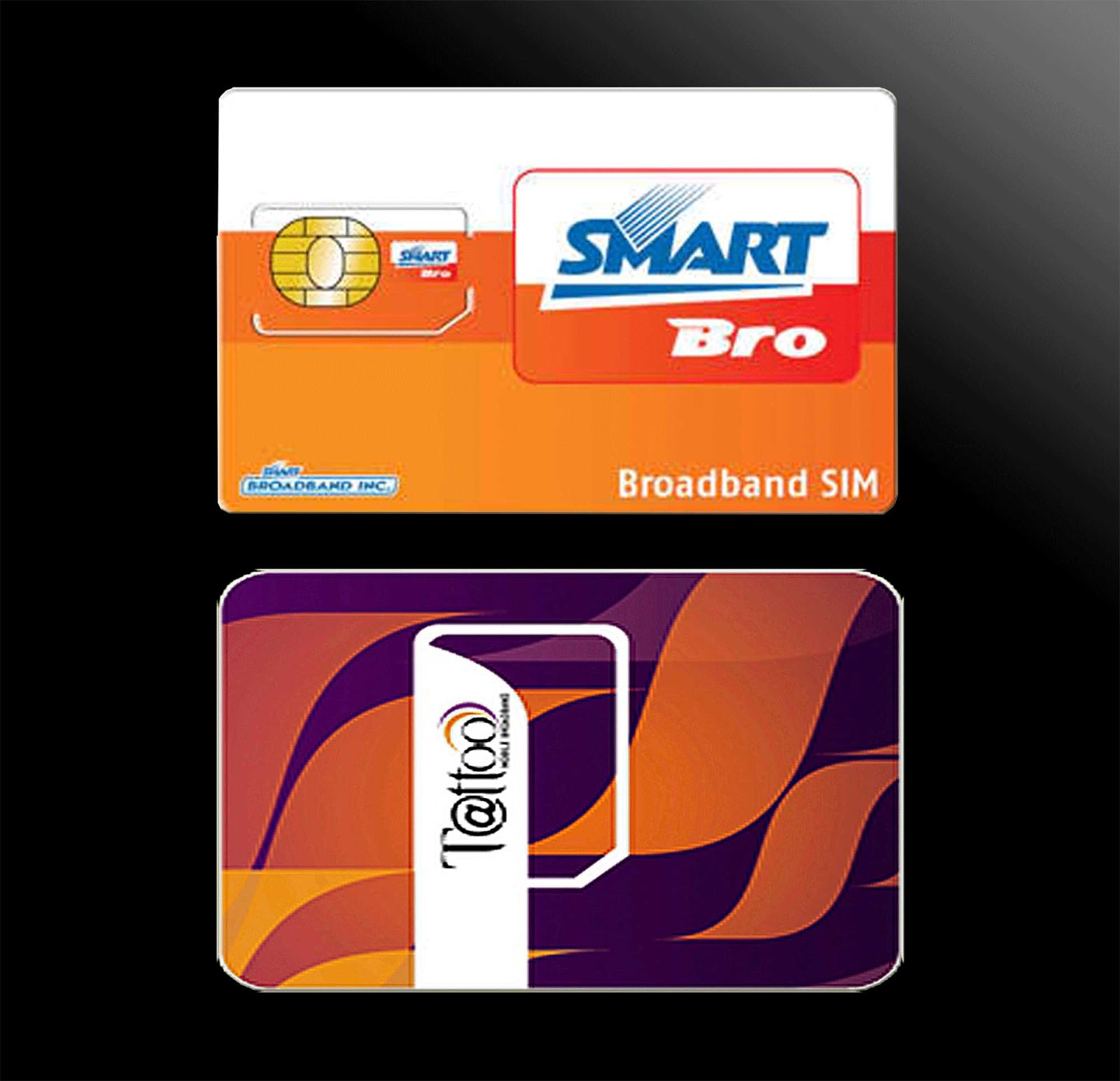
    Brief History: A few weeks ago, I have purchased Smart's Starter Kit (STARTER Plug-It). I choose this against Globe's Tatto because  I am constantly moving between two homes about 40 Km apart and on one of them, I can only get signal from Smart and not from Globe even if it is only Edge. At least browsing is still possible with my mobile using an Edge connection.

           These kits have about 120 hours (about 5 days) of free internet out of the box. During those period, surfing the internet was seemless. Never had any problem what so ever. When the free period is over, my problems started. Immediately after the free period expires, I got disconnected and was unable to connect any more. I then tried to load using the reload card (did I say I got the prepaid?) but still unable to connect. I tried my Buddy SIM on the dongle and it works pretty well. So, I checked the SmartBro interface and went to the settings tab but has very limited options there and despite some suggestions I got through Googling, I still could not connect. By the way, comparing the settings panel for Tattoo and SmartBro, Tattoo's settings panel seems to have more options (if memory serves me right), but that for another story.

           Make long story short, I ended calling their customer support. They asked me questions like when problem started, where is my location and such basic questions. So far so good. Then the rep on the other end asked if after the free period I got automatically disconnected and I said YES. So he told me that they will be checking on my account and for the meantime I will monitor my connection within 24 hours. So I did.

           24 hours passed and what do you know, I can connect again! I said Yes! I told myself at least they are not as bad with after sales service as others have been reporting.

           Several hours later, another problem started. I am now getting disconnected every 30 seconds or so. For the whole night I ignored it as I can still load a page and read it. I just have to restart the connection after wards, thinking maybe it will be just for the night and things will return to normal again by the next day.

           Morning came, I checked my connection and still the same happens. 30 seconds (well not all the time, sometimes I get 1 or 2 minutes if I am lucky but not more than 5 minutes of continuous connection) then my connection is out again. Funny thing is the interface is still showing I am connected.

           How do I know? Because on the Task Manager (Ctrl+Alt+Del to bring up the Task Manager window) under Networking tab, I don't see my SmartBro connection. I did a ping to Google as well (Click Start button - I am using XP then click run type "cmd" or "command" without the qoutation marks to bring up the DOS shell window and type "ping www.google.com /t" then press enter key without the qoutes. To terminate the ping, press CTRL+C) and I get an error message "ping request could not find host...".

           Since I am moving to the other house, I did not bother reporting the problem. Still thinking that maybe when I get back, all is going to be normal once again.

           After a week, I got back and tried connecting again. Still same thing happens. So I called their hotline (*8888) to report on the problem. Asked me several questions. In the end the rep guy told me that he will have to make a report and that I will have to monitor my connection within 24 hours.

    Report number: 418363218
    Time and date of call: 11/24/2012 at around 9:00 am

           This now brings us to the present......So much for a brief history huh! hehehe.

    Now: 24 hours has come and gone. Still getting intermittent connection. Now windows and other installed programs are asking for updates but could not do so because of the intermittent connection specially my security tools.

           I called back. Me and the guy at the other end went through the same process like the previous day.

           Asked the same questions already asked yesterday like where do I live, how many bars do I see on the interface, how long is the disconnection. Then asked me to be put on hold so he could check something. Came back after like 1 or 2 minutes and asked me a question or two more then told me that he must make a report. The event that happened so far is the exact same thing that happened yesterday: asked questions, hear the clicking sound of a keyboard (obviously filling-up a custom form for the kind of problem I have), then excuses himself (making me wait several minutes) and return to tell me he needed to make a report. This time, I am a bit more prepared so I then asked why the need for a report again when it was already reported yesterday and the same questions I answered today were answered already yesterday. His reply is so that their tech could make adjustments needed for the problem in my area, well to be fare this makes sense. I asked, so how long will this adjustment take (thinking to myslef that probably they are already doing some adjustments but needs more time)? He told me normally it would take about 24 hours. Well 24 hours has passed from the first report and nothing has changed. I was already told twice to monitor my connection within 24 hours. Wait 24 hours it is....

    Report Number: 418473230
    Time and date of call: 11/25/2012 at 9:42 a.m. (end of call)
    Customer Rep: Anthony (Last name withheld)

    _________________________________________________________________________________
    Update (11/25/2012): Connection still getting disconnected although not as previously stated anymore. Now my connection lasts for 5 minutes or so. But this is still not acceptable as the speed is very slow. Software update is still impossible. 12 more hours to wait, but won't be able to give you updates since I am moving to my other home. Will be updating next weekend. Until then!

    Note: This is already quiet long so I need to stop for now. I have copied my pings and other things I have made and will update this post with visuals later on. If you have the same problem or other problems, share them with me so I know I am not the only one. hehehe! Bye for now.

    _________________________________________________________________________________
    Update (11/30/2012): Connection is still the same. Just subscribed to SmartBro UNLISURF for 2 days and what I got is a limited surf of 30 seconds for each connection, that is from 10:00p.m. to past twelve midnight.   So I said enough and I called back at Smart's customer service hotline. And for a change I instantly got connected to a service rep. I normally get an answer for about 10 minutes or more of waiting. But this time it was very, very quick. Like I did not even hear the music they usually play to make you wait.

    Anyway, to my update. After our brief good evenings, I told them I am having problem with my connection and that it frequently gets disconnected and added that I am having this same problem since around two weeks ago and that I have been previously been given 2 report numbers and asked him if he wanted to get the last report number. To be honest I did not understand his reply  but I gave the number anyways.

    That is when the usual questions were asked. Asked my location, my name, where was the device connected was it on a notebook or a desktop? I said desktop. What is my OS? I said XP. Then the usual wait for a minute or two to check the service in my location. After two minutes(I was already enjoying the music on the phone when...), he came back and told me that there is nothing wrong in my area and that there is no report of any service maintenance or something in my area.

    And so I pressed the question,  so why am I getting disconnected? Asked me If I have tried to connect the device on other pc but told him no but that I have used the sim on my phone in another location without any noticeable interruption. But I quickly added that that was a cellphone and that I may not be able to detect it like in a pc and that my connection is only edge.

    Then he asked me to try to restart the device by disconnecting it. At the same time he asked me to restart my PC. I already told him that I have done that already a few times tonight but I obliged and restarted everything. While I am restarting it was somehow implied that maybe it was my desktop having a problem. So I told him that I have a reasonable number of processes running tonight around 40+ and that my memory usage tonight is around half of the commit charge. I have also checked already for possible virus although I don't think virus would affect connectivity.

    He said he was very sorry and due to the several reports that I have made already, this thing has already been hilighted.

    I also mentioned that this thing normally happens during peak hours. After hearing this, he goes off again. When he came back he said that due to the new information I have given them regarding when I normally get a lot of disconnection, he will have to make a report and that I will have to.....well we already know the rest of where this goes. So another 24 hours it is.

    By the way, it is already past 1 a.m. at the time of this update and I already have a steady connection.

    Oh before I forget, I learned a new thing from this guy: All the while my notion was that the canopy and this mobile broadband are the same but actually it is not. The canopy has a different signal from mobile broadband. The canopy relies on line of sight while mobile broadband seems not because you can take it where ever you go so line of sight is no issue and therefore jitter does not apply to mobile broadband (for the  jitter part, I still have to check its truthfulness).

    Here are some screen shots I took last week.
    Ping to Google has timed out and time is too long.
    After several second of pinging, connection is lost.


    Task Manager capture showing network usage. Taken while
    trying to watch in YouTube which of course keeps buffering.

    Even Smart website can't load. Notice also SmartBro interface,
    it can't load properly due to very poor connectivity. Even if
    SmartBro is already disconnected (check the task manager),
    the interface shows that it is still connected.


    Download and Upload speed the same at 20Kbps? Isn't this
    dial-up speed from way back? If I am not mistaken dial-up is
    even faster than this.
    Pingtest.net result the following morning.


    _________________________________________________________________________________

    Update (12/01/2012): Just want to give abrief status update to my internet connection. It seems that whatever Smart did is working. Now I don't have as much and as frequent disconnections but still gets disconnected. At least now I can watch videos and download a 10mb file.

    I have observed though that my disconnections seem to be related to how much data I download. It is like there is a qouta of data you are allowed for a certain amount of time and when your data download continuous, the disconnection happens. Not sure but that is only my opinion. Might want to test this some other time.

    But for now, I am quite satisfied with my connection. So to the Smart guys, good job. Reserving my thanks though until I am satisfied that this is going to be a permanent thing. keeping my fingers crossed.

    Back to CyberLiving home page

    Other Posts
    Movetab MA900 review
    How register your SmartBro to UNLISURF before it automatically connect to the internet